 How to Update Your Backup Server Address
If your backup server address has changed, you will need to update the connection settings within the Backup Pro Client to continue accessing your backup account.
This guide explains how to update the backup server address using the desktop application.
Step 1 - Open the Backup Pro Client
Launch the Backup Pro Client on your computer.
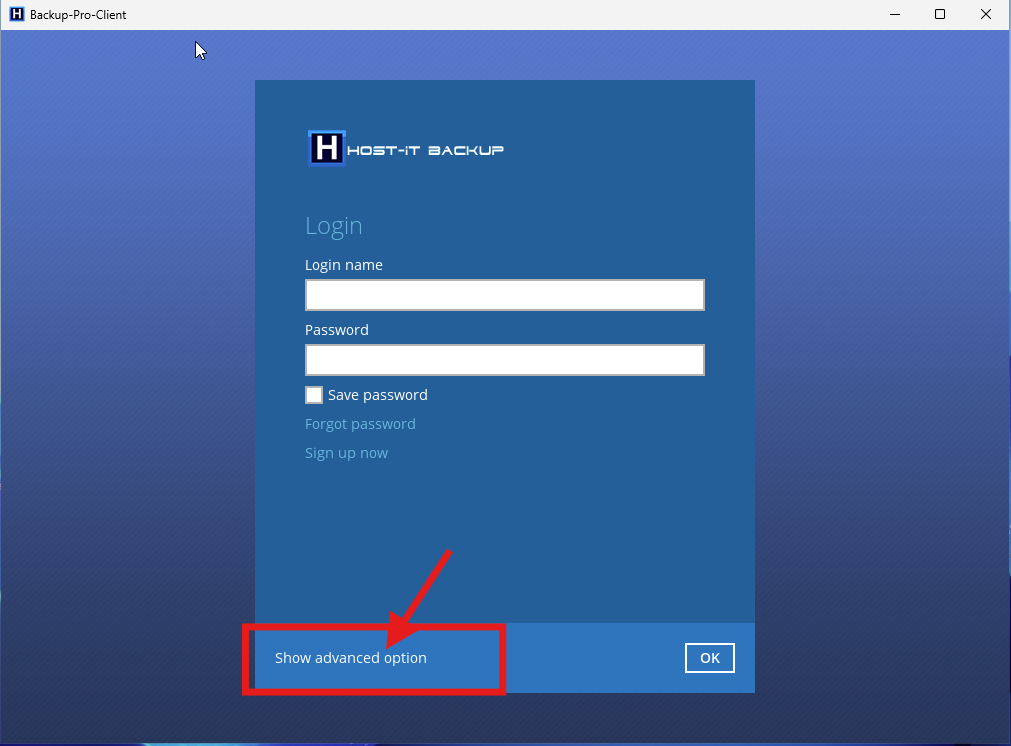
When the login screen appears, select Show Advanced Options to access the server connection settings.
Step 2 - Update the Backup Server Address
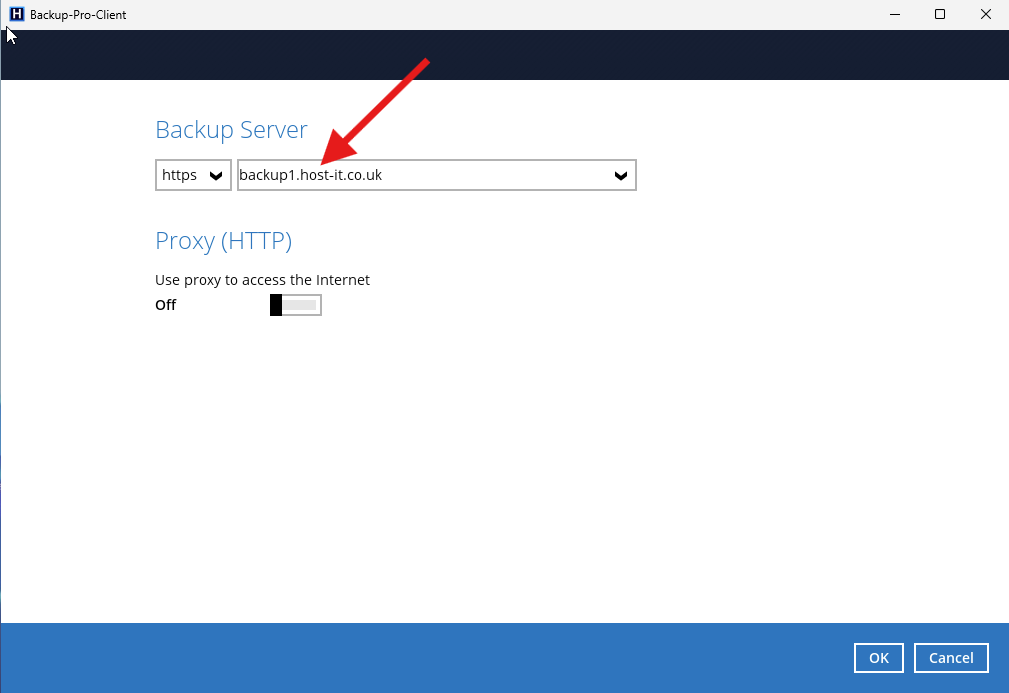
On the advanced options screen, locate the Backup Server field.
Replace the existing server address with the new backup server address provided to you.
Ensure that the new address has been entered correctly before proceeding.
Step 3 - Save the Changes
Once you have updated the backup server address, click OK to save the changes and return to the login screen.
Step 4 - Log In to Your Backup Account
Enter your existing backup account username and password, then click Login.
The Backup Pro Client should now connect to the new backup server.
Important Information
- Only update the backup server address using the details provided by our support team.
- Your existing backup account username and password should remain unchanged unless you have been advised otherwise.
- Ensure the new backup server address is entered exactly as provided, including the protocol and port number if specified.
- If you are unable to log in after updating the address, check that the server details have been entered correctly.
- If you continue to experience connection issues, please raise a support ticket for further assistance.

